Where Malware Hides on Windows and How to Find It
Malware that survives a restart has to be started by something. On Windows that something is almost always one of a few well known places, and you can check the four most common ones yourself in about ten minutes. You don’t need to buy anything or install a security suite to do it.
Everything you’ll see in this guide comes from a demonstration. I planted the fake myself: a small harmless file named svchost.bat in my Temp folder, an entry in the registry Run key that starts it at sign in, and a scheduled task that does the same. That gave me something real to find, using the same places and the same steps you’d use on a PC you’re worried about. Autoruns, a free Microsoft tool, can check all of these places at once, but the manual checks show you what the tool is reporting.
KEY TAKEAWAYS
- Startup folders, the registry Run keys, Task Scheduler and Windows services are four common places for malware to restart itself.
- A name tells you very little, because fake files copy real names like svchost. The folder a file runs from is what gives it away.
- Malware often sits in more than one place. If you remove only one entry, it can come back after the next restart.
- Autoruns from Microsoft lists everything that starts with Windows and flags entries it can’t verify, but it isn’t a replacement for an antivirus scan.
Prefer to watch? Here’s the video.
The startup folders
This is the oldest trick. Anything placed in the startup folder runs as soon as you sign in to Windows. Press Windows + R, type the command below and press Enter to open the folder for your own account.
shell:startupThere’s a second folder that applies to every account on the PC, and it’s worth checking too:
shell:common startupBoth were empty on my PC, which is the normal result. These are the first places anyone looks, so serious malware rarely uses them. If you do find a shortcut or file here that you didn’t put there, note its name and path.
The registry Run keys
Entries in the Run key start automatically when you sign in, much like the startup folder, but they sit in the registry where most people never look. MITRE’s ATT&CK database lists these keys as one of the most commonly used ways for malware to start with Windows, and notes that the per-user key doesn’t need administrator rights to write to.
Press Windows + R, type regedit and press Enter. Then go to this path:
HKEY_CURRENT_USER\Software\Microsoft\Windows\CurrentVersion\RunThe same key also exists for the whole machine, under HKEY_LOCAL_MACHINE\SOFTWARE\Microsoft\Windows\CurrentVersion\Run, and there are matching RunOnce keys. Check them as well.
On my PC the list had Edge and OneDrive, which are normal, plus the default entry that’s always there and empty. Then there was svchost. That is a real Windows name, but this one pointed to a file in my Temp folder. Genuine Windows system files don’t run from Temp, which is where Windows keeps files it’s about to throw away.
CHECK THE PATH, NOT THE NAME
The name is copied on purpose, so it proves nothing. Look at where the entry points. Edge runs from Program Files and OneDrive runs from its own folder in your user profile. Every real program has a home, and a system file name pointing at Temp, Downloads or a random AppData folder is the red flag.
If you decide to browse the registry, be careful. Right-click a key and choose Export first if you plan to change anything, so you have a backup you can restore.
Task Scheduler
If you delete the registry entry and the file comes back after a restart, something else is putting it there. A common culprit is a scheduled task, and MITRE lists scheduled tasks as another popular way for malware to keep running. Task Scheduler runs jobs on a schedule or when an event happens, such as when you sign in.
Press Windows + R, type the command below and press Enter, then open Task Scheduler Library.
taskschd.mscMost of what you’ll see is legitimate: Edge update tasks, OneDrive tasks and other software you’d recognize. Almost nobody opens this window, so it makes a good hiding place.
In my test, the same fake svchost name appeared here. Real tasks have a description, and this one’s was blank. Its trigger was At log on, so it ran every time I signed in, and the Actions tab showed the same Temp path as the registry entry. One file was now being started from two places.
When a deleted file returns after a restart, this is a common cause: only one of the two entries was removed, and the other recreated it. Both have to go.
Services and svchost
The fourth place is Windows services. Open Task Manager and you’ll see a lot of entries called Service Host. Each one is a svchost.exe process, and having fifteen or twenty of them is normal. Windows uses svchost to run many of its own services, and security guides note that it may split them into separate instances.
Expand one and you’ll see the services it hosts. The problem is that malware can register itself as a service that loads inside a real svchost process. Task Manager would show svchost.exe, signed by Microsoft, and nothing would look wrong.
DON’T KILL SVCHOST
Don’t end, disable or delete svchost processes to see what happens. They run parts of Windows itself, and stopping the wrong one can drop your network, crash the system or force a restart. The real file lives in C:\Windows\System32. You never go after svchost directly. You look at what is loaded inside it and check each piece, which is where a tool helps.
If you want to check a specific process, right-click it in Task Manager and choose Open file location. A real svchost.exe opens System32. One from AppData, Temp or Downloads isn’t real.
Check all four with Autoruns
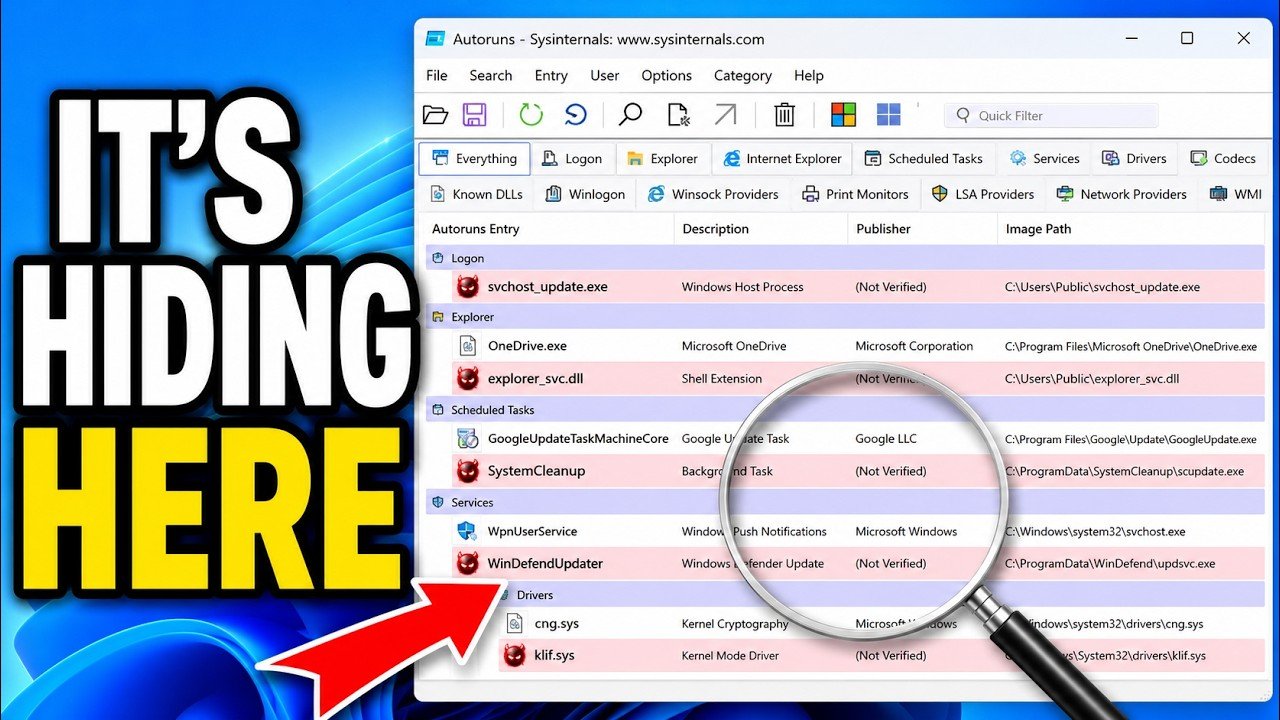
Doing this by hand teaches you what you’re looking at, but it’s slow. Autoruns is a free tool from Microsoft’s Sysinternals collection that lists everything that starts with Windows: startup folders, Run keys, scheduled tasks, services, drivers and more. Microsoft describes it as having the most comprehensive knowledge of auto-starting locations of any startup monitor. Download it from that page, extract the zip, and run Autoruns64 as administrator. The current version at the time of writing is 14.3, released June 17, 2026.
The unfiltered list has hundreds of entries, which is no more useful than scrolling Services by hand. Open the Options menu and choose Hide Microsoft Entries. Microsoft’s page calls the option Hide Signed Microsoft Entries, so the wording may differ slightly by version. Autoruns hides what Microsoft signed, and leaves what’s left.
In my test, two rows stood out with a pink background and “(Not Verified)” in the Publisher column: the fake svchost in the registry and the same file in Scheduled Tasks. Everything else came from signed companies. Pink means the entry has no publisher or its signature can’t be verified. Yellow means the entry points to a file that no longer exists, which is usually leftover junk. Pink is the one to look into.
WHAT AUTORUNS CAN’T TELL YOU
Autoruns is a good filter, not a verdict. A signed file can still be bad, and some security researchers have shown ways to slip past the Hide Microsoft Entries filter. Treat an unsigned entry as a suspect worth checking, not as proof. You can turn on signature checking and VirusTotal lookups in Options > Scan Options. If something feels wrong, a full antivirus scan has the final say.
Removing something you’ve confirmed is bad
Only delete something you’ve confirmed is bad. If it’s pink in Autoruns and it points somewhere it shouldn’t, that’s a suspect. If it’s verified, or you aren’t sure, leave it alone.
In my test I removed things in this order, and the order matters:
- The scheduled task first. It’s what recreates the registry entry, so deleting it stops the file from coming back. In Task Scheduler, right-click the task, choose Delete and confirm.
- The registry entry next. In the Run key, right-click the one value for the fake svchost and delete it. Only that line, not the key around it.
- The file last. Delete the file from its folder, in my case Temp. With the task and the entry gone, nothing points to it anymore.
If you’re not comfortable doing this by hand, Autoruns lets you untick an entry instead of deleting it. That disables it, and you can tick it again if you got it wrong, which makes it a safer first step.
IF IT’S REAL MALWARE
What I showed was a harmless file I planted myself, for a case where I knew exactly what I was looking at. If you found something you didn’t plant, don’t hand-delete it. Run a full Windows Security scan, and if that doesn’t clear it, a Microsoft Defender Offline scan, which restarts the PC and scans before Windows loads. It’s under Windows Security > Virus & threat protection > Scan options. If the PC held passwords or banking logins, change them from a different, clean device afterward.
Where I’d start
If you only want to do one thing, run Autoruns with Microsoft’s entries hidden and look at the pink rows. It covers all four places in a few seconds, and in most cases you’ll find nothing. The manual checks are worth doing once so you understand what the tool is showing, and so you can tell a harmless leftover from something that shouldn’t be there.
None of this replaces an up-to-date antivirus. It helps you check when something feels off, like a window that flashes on screen and disappears.
Questions people ask
Where does malware hide so it survives a restart?
The most common places are the startup folders, the registry Run keys, Task Scheduler and Windows services. It often uses more than one at once.
Is svchost.exe a virus?
No. It’s a normal Windows process, and seeing many of them in Task Manager is expected. A fake can copy the name, so check that the file is in C:\Windows\System32 and is signed by Microsoft.
Should I end a svchost process in Task Manager?
No. Ending the wrong one can crash Windows or cut your network. If you suspect one, find the service inside it and check its path.
Is Autoruns safe to use?
It’s a free Microsoft Sysinternals tool. Download it from Microsoft’s own page. Autoruns only changes things when you untick or delete an entry yourself.
What do the pink and yellow rows mean?
Pink means no publisher or an unverified signature, and it’s the one to investigate. Yellow means the entry points to a file that no longer exists, which is usually harmless leftover junk.
Does a clean Autoruns scan mean I’m safe?
No. Malware can use other methods, and a signed file can still be bad. Treat it as one useful check alongside an antivirus scan.
Is it safe to edit the registry?
It’s safe if you’re careful and only delete an entry you’ve confirmed is bad. Export the key first so you can restore it, and if you aren’t sure, leave it alone.
Have you found something odd with these checks? Tell me in the comments what it was and where you found it.