How to Block Scam Calls on Samsung Galaxy Phones
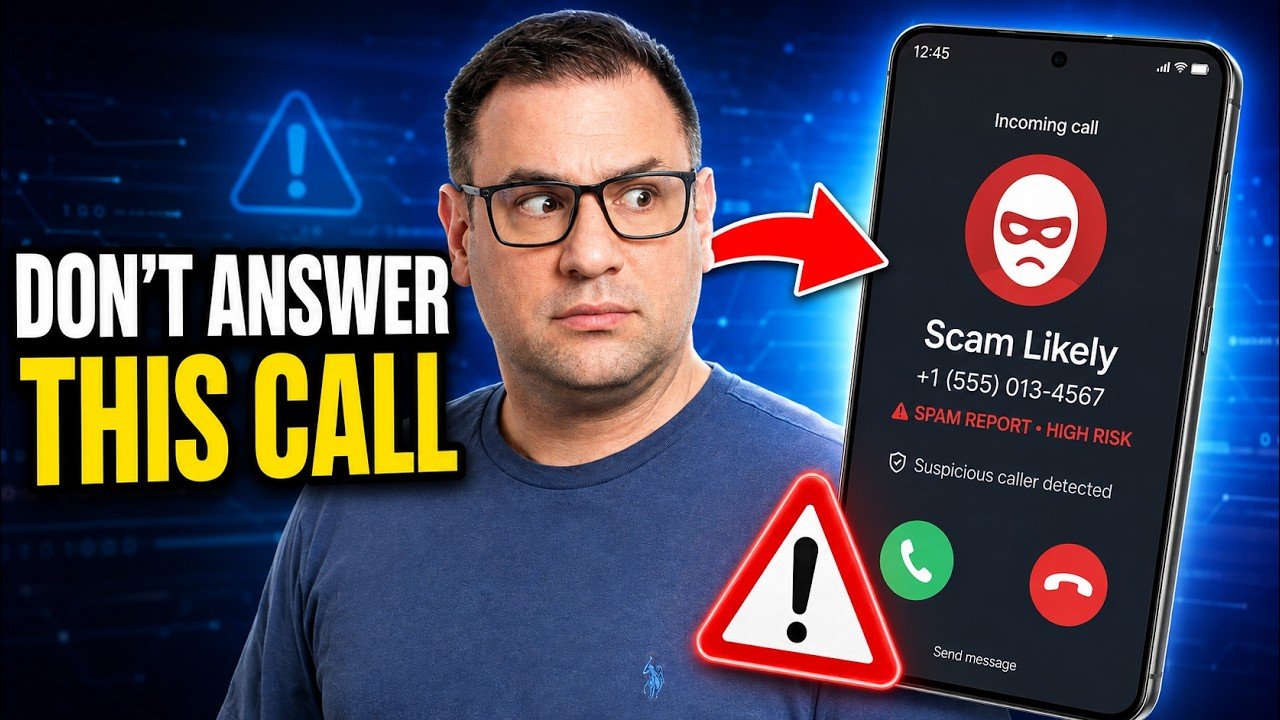
Scam calls now go well beyond annoying robocalls. Some callers are after your bank account, others want enough personal details to pretend to be you. Samsung phones have a built-in filter for this, and by default it does nothing until you switch it on and accept its terms.
It takes about five minutes and three changes: choose the Phone app as your caller ID and spam app, turn on Caller ID and spam protection with blocking, and trim what the Phone app is allowed to access. Menu names below follow One UI on a recent Galaxy phone, and yours may differ a little by model and carrier.
KEY TAKEAWAYS
- Turn on Phone app > Settings > Caller ID and spam protection, then switch on Block spam and scam calls.
- You can block everything flagged as spam or scam, or only the high risk calls. The second option lets some milder spam through.
- The feature is powered by Hiya. Samsung asks you to accept its terms and privacy policy first, and the service matches the numbers you receive against its database.
- Phones with One UI 8.5 or newer may also have AI scam detection, which warns you with a tone or vibration during a suspicious call.
- Limit the Phone app’s permissions to what it needs. Camera and Location are the two I would turn off.
Prefer to watch? Here is the video, and the steps below link to their moments in it.
Choose the Phone app as caller ID and spam app
Android lets you pick which app identifies callers and flags spam, and on many Galaxy phones that slot starts out empty. Open Settings > Apps, tap Choose default apps at the top, and open Caller ID and spam app. If it says None, select Phone instead.
The screen describes these as apps that identify calls and block spam, robocalls or unwanted numbers. If your phone has no such entry, move on. The next section is the part Samsung documents on its own support page.
Watch this step in the video (0:45)
Turn on Caller ID and spam protection
- Open the Phone app, tap the three dots at the top right and choose Settings.
- Tap Caller ID and spam protection. It may be off. Switch it on, read the terms and privacy policy, and tap Agree.
- Switch on Block spam and scam calls.
- Choose Block all spam and scam calls or Only block high-risk scam calls.
The choice is a trade-off. Blocking everything flagged keeps the most junk away, but the labels come from a database of reports and can occasionally catch a call you wanted, such as a business using a number that others have reported. The high risk option stops the worst of it, and Samsung notes that less severe spam can still get through.
When an unwanted call does come in, tap Block/Report number at the bottom of the call screen, during or after the call. Choose Block number, or Report number to pick a category and help flag it for others. To undo a block, open Settings > Block numbers in the Phone app and tap the red minus beside the number.
Samsung calls this feature Smart Call, and Hiya provides the data behind it. In Hiya’s privacy policy for the Samsung service, the data it handles includes a hashed version of your phone number, your mobile carrier, language, country, device model and call event data, which it uses to match the numbers you call or receive against its database. It says it does not sell personal data. The version of the policy I found is dated 2021, so read the current one before you tap Agree if that matters to you. The terms step is also a likely reason the feature is not on by default.
ONE MORE SWITCH, USE WITH CARE
Under Block numbers there is also Block calls from unknown numbers. It blocks everyone who is not in your contacts or identified by Smart Call, which includes doctors, couriers and anyone calling you for the first time. Leave it off unless you rarely get calls from new numbers.
Voicemail is not covered by the phone. If scam voicemails are the problem, Samsung says to contact your carrier. Smart Call may also not be available on every carrier or model.
Watch this step in the video (1:29)
Scam detection on newer phones
If your Galaxy runs Android 16 with One UI 8.5 or newer, Samsung’s support page says an AI based scam detection feature is available. It analyses an incoming call as it happens, looks for patterns linked to scams, and alerts you with a tone or vibration. You turn it on in the Phone app settings.
Not every phone gets it. Samsung says availability varies by carrier and model, and reports note that even some phones on current software do not show the option. Check Settings > Software update for your version, then look in the Phone app settings for the scam detection entry.
Limit what the Phone app can access
The Phone app does not use every permission it has been given. If you want a little more privacy, you can switch some of them off. Open Settings > Apps, tap the magnifying glass and search for Phone, then open it and tap Permissions.
- Call logs: allow. Without it you cannot see who called you or whom you called.
- Camera: not needed for ordinary calls. Choose Don’t allow, or Ask every time if you use video calling from the dialer.
- Contacts: allow. The dialer needs it to show names.
- Location: choose Don’t allow.
- Notifications: keep on, so caller ID and spam alerts reach you.
- Phone: allow.
- Photos and videos: only used for contact pictures, so Allow limited access is enough.
- SMS: keep allowed.
Which entries you see depends on your model and software. If something in the Phone app stops working after you change a permission, switch that one back on.
Watch this step in the video (2:43)
What this does not stop
A spam filter works from reports, so a brand new scam number may ring through before anyone has flagged it, and scammers can make a call appear to come from another number. The filter also does not touch text messages.
IF A CALLER SOUNDS URGENT
A caller who says they are your bank and pushes you to act now is a warning sign by itself. Hang up and call the number printed on your card or on the bank’s website. Never read out one time codes, and never install an app because a caller told you to.
Questions people ask
Is this only for Samsung phones?
The steps here are for Samsung Galaxy phones, where the feature is Smart Call. Other Android phones use their own dialer, and the Google Phone app has a similar caller ID and spam protection option.
Does it cost anything?
Samsung does not list a charge for Smart Call. It is a switch in the Phone app settings.
What if I do not see Caller ID and spam protection?
Update the phone through Settings > Software update. If it is still missing, your carrier or model may not support Smart Call. Samsung says it may not be available everywhere.
Names look wrong or numbers are labelled incorrectly. What now?
Labels come from a database of reports. Report the number from the call screen, or turn Caller ID and spam protection off to test whether it is the cause.
Will it block calls from my contacts?
The filter is meant for numbers that are not in your contacts. The separate Block calls from unknown numbers switch is the one that can catch first time callers.
Did the filter catch anything on your phone? Tell me in the comments which option you chose, block everything or only high risk.